Introduction to Dialogflow: Settings and Limitations
When creating a chatbot on the Dialogflow platform, we covered in the previous 4 lessons (links at the end of the article). In the last part of Introduction to Dialogflow, I will reveal some nuances of chatbot settings, as well as tell you about a number of platform limitations.
As you already know, the agent reacts not only to phrases that are written in "Training phrases", but also to similar ones in meaning. The bot processes information and gives the user a response. The response is formed thanks to the Responses section.
In general, everything looks quite simple and transparent. After conducting training, adding contexts and parameters, you can get quite good results from the bot.
Let's try to "fine-tune" our rules a bit.
Priorities
Go to the "Intents" section and pay attention to the blue markers before the rule names.
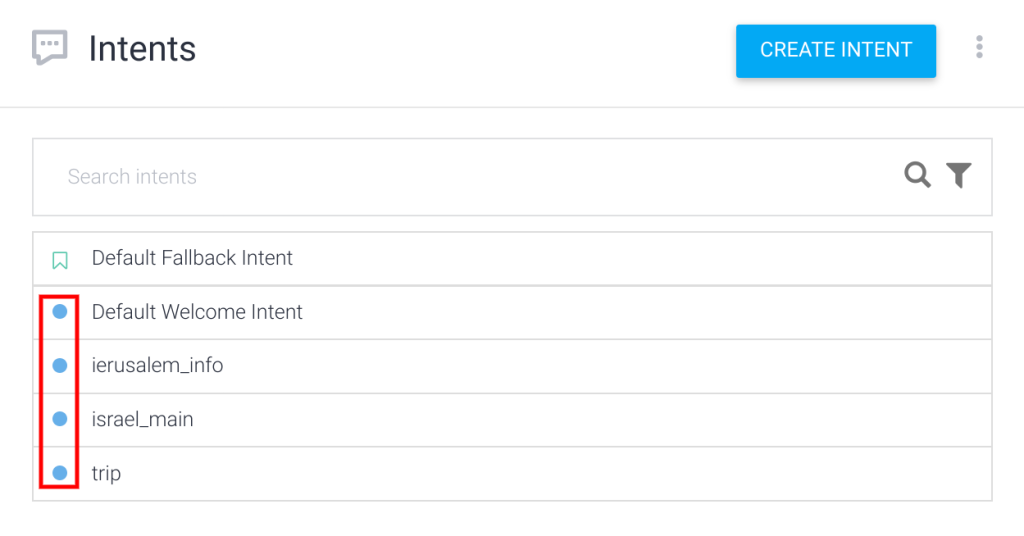
This is the priority. Let's select a rule and open it. There will also be a blue marker next to the name.

If you click on the marker, a list of priorities for the rule will appear. As we can see, the blue marker means normal priority.
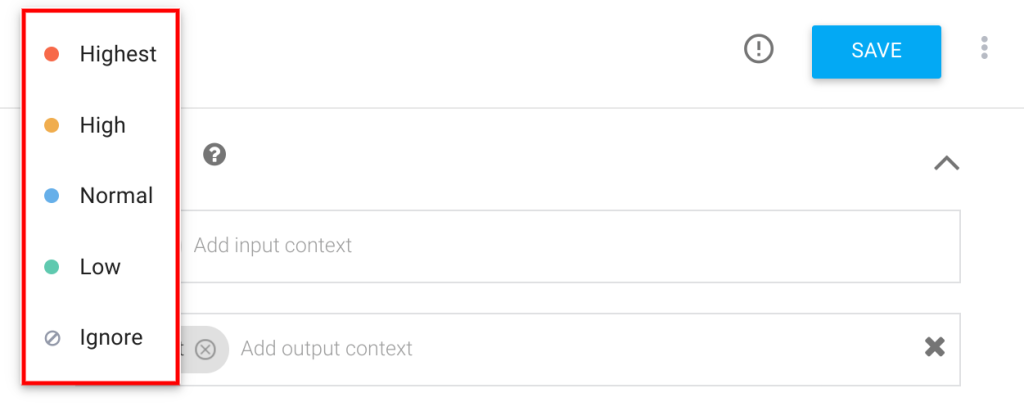
Priorities are especially relevant with a large number of rules. No matter how much you want it, situations will definitely occur when a number of training phrases will be written simultaneously in several rules. Using priorities, you can control the frequency of calling one rule or another, or even turn rules on and off as needed (status Ignore).
Export/Import
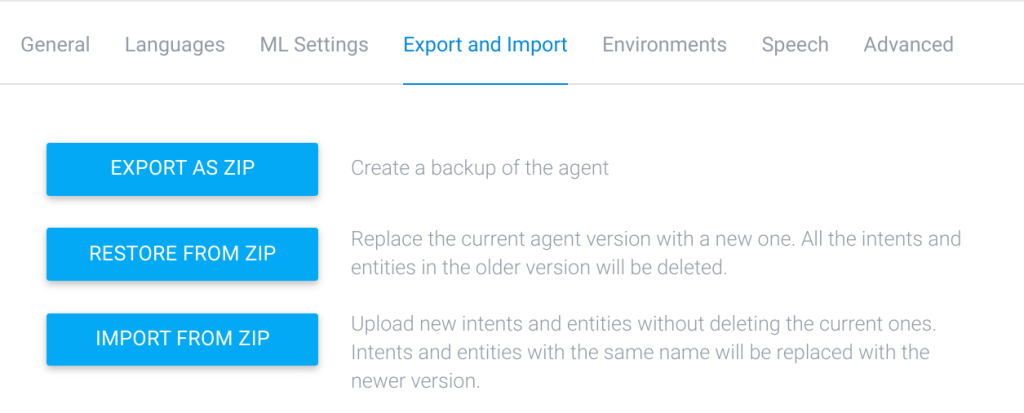
Dialogflow has a function that allows you to export/import rules and other settings. You can make a backup copy of the current version of the agent and restore it from the archive if necessary.
To do this, go to settings (button in the form of a "gear" in the upper left corner) and select the "Export and Import" menu.
Machine Learning Settings
Another useful section in the settings is called "ML Settings". ML is short for "machine learning".
There is an interesting parameter that is responsible for the reaction to incoming phrases and two options — hybrid and only machine learning.
With a small number of rules, use the hybrid method. But when there are already hundreds of rules, choose machine learning. In this case, the agent will work much faster and will not start the learning process with each save.
Below is the "ML CLASSIFICATION THRESHOLD" parameter, containing a value in the range from 0 to 1. With this parameter, you determine how strict the agent will be. If the value is closer to 0, it means that the agent will find the rule faster and react to phrases, but the error threshold will also be higher. In short, the agent will be less smart but faster :smile:
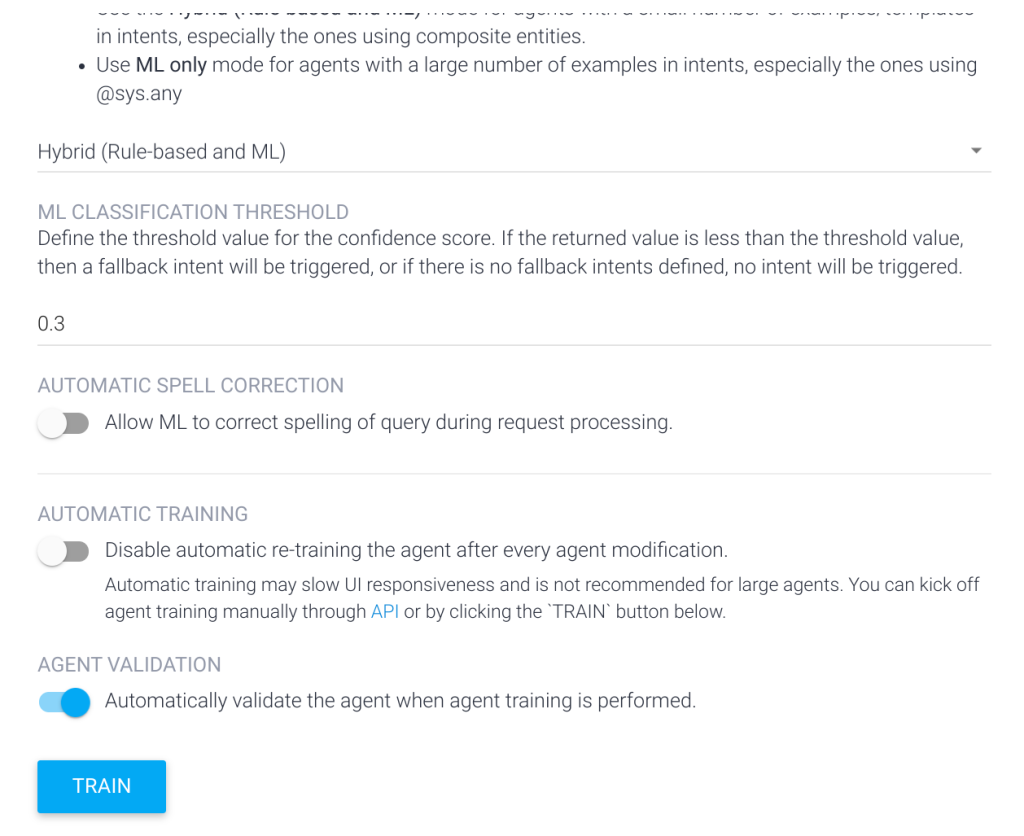
Accordingly, with a value closer to 1, the agent will become more careful in choosing phrases. It will work well with a large number of phrases and sufficient agent experience. The more experienced the agent, the stricter it can be made. But you will have to select the parameter value on real examples, sequentially.
I don't see much point in configuring the "AUTOMATIC SPELL CORRECTION" parameter. With this parameter, we allow the agent to correct user spelling for more accurate recognition of incoming phrases. Whether the parameter is turned off or on, I didn't see much difference. Perhaps this function works best for English.
The "AUTOMATIC TRAINING" parameter requires activation if you want to train the agent yourself. Activating the parameter disables automatic training (which can take hours in some cases) and activates via the "TRAIN" button.
The last parameter in the "ML Settings" section is called "AGENT VALIDATION" and is responsible for automatic checking of agent content. The check means the correctness of composing training phrases, answers, and more. You can observe the results of automatic verification in the "Validation" section.
This concludes our introduction to Dialogflow. The information received in 5 articles will give you the necessary knowledge for quickly launching a chatbot. I'm sure you'll like Dialogflow and want to go further in developing conversational bots, integrate with other services, etc.
Disadvantages and Limitations
Dialogflow has its downsides.
First of all, it's the entry threshold. It's quite high. Even the Dialogflow interface looks "scarier" than the interface of any other platform for developing chatbots.
If your bot frequently exchanges information with users (accepts, stores and processes parameters, transfers data from dialogue to dialogue), then you can't do without a third-party server. And this will significantly increase the complexity of chatbot development. But there's also good news, you will be able to operate data more flexibly and store it in the format that is more convenient for you.
The chatbot cannot initiate dialogue with the user, but only reacts to their actions. This limitation will not allow you to implement, for example, content distribution. The limitation can be bypassed. One option is to integrate Dialogflow with ManyChat or Chatfuel. This is quite realistic. Thus, you can put the mailing on the last two platforms, and communication with the user will be through Dialogflow. The second option is to implement mailing manually using messenger APIs.
Dialogflow can recognize both text and user voice. Unfortunately, this function works well only for English.
Each platform has its advantages and disadvantages. I would call Dialogflow one of the few platforms that allows you to create real chatbots capable of maintaining meaningful dialogue with the user, and not just reacting to buttons.
I hope this topic will interest you. I will be glad to hear your feedback.